

This is Part-2 of this application read part 1 first:
Part 1: How to create a simple calculator using Tkinter in python
Through this article, we will learn How to create a simple calculator with the help of loops. In the article “How to create a simple calculator using Tkinter in python”, We learned to create the same GUI but without any loops so lines of codes were more and repeating codes is never a best practice, if we have options available. The code that I am using in this article will provide you better GUI and the line of code is also optimized. But I would suggest reading the above-mentioned article for a better understanding of all the widgets, methods, and attributes used for creating the calculator.
Code:
#importing all files from tkinter
from tkinter import *

from Calculator import screen
#definging height and width of button.
button_height=1
button_width=3
#defining height and width of screen
screen_width =450
screen_height= 600
#creating instance of Tk() to create tkinter window
root=Tk()
#providing title to the tkinter window.
root.title("SIMPLE CALCULATOR")
#providing dimension to tkinter window using formatted string approach
root.geometry(f"{screen_width}x{screen_height}")
#defining max and min size of screen
root.maxsize(screen_width,screen_height)
root.minsize(screen_width,screen_height)
#configure() method is used to change the default background color to "gray"
root.configure(background="gray")
#scvalue created here is a variable or intsance of StringVar()
scvalue=StringVar()
scvalue.set("")

#This defines the function for click event
def click_me(event):
    value=event= event.widget.cget("text")
    #print(value)
    if value == "=":
        try:
            if scvalue.get().isdigit():
                finalvalue= int(scvalue.get())
            else:
                finalvalue=eval(scvalue.get())
                scvalue.set(finalvalue)
                screen.update()
        except:
            scvalue.set(scvalue.get()[:-1])
            screen.update()
    elif value=="<=":        #for backspace
        scvalue.set(scvalue.get()[:-1])
        screen.update()
    elif value =="1/x":      #for calculating reciprocal
        if scvalue.get().isdigit():
            val=int(scvalue.get())
            scvalue.set(1/val)
            screen.update()
        else:
            scvalue.set("Unknown error")

    elif value== "C":          #for clearing the screen.
        scvalue.set("")
        screen.update()
    else:
        scvalue.set(scvalue.get() +value)
        screen.update()

#Here Entry widget is used to accept single line string text from the user.
screen= Entry(root,textvar=scvalue,font="lucida 40 bold" ,justify=RIGHT)
#pack() method with screen is used to organize the geometry of widget in blocks after placing in parent widget.
# i.e it act as a geometry man
screen.pack(fill=X,padx=5,pady=5)

#list of all the inputs
valuelist=["/","%","C","<=","7","8","9","*","4","5","6","-","1","2","3","+","1/x","0",".","="]
#this loop
for i in range(20):
    if i%4 == 0:
        frame=Frame(root,bg="gray")
        frame.pack()
    b=Button(frame,text=valuelist[i],height=button_height,width=button_width,font="lucida 35 bold")
    b.bind("<Button-1>",click_me)
    b.pack(side=LEFT,padx=3,pady=3)
#running mainloop
root.mainloop()
Output:

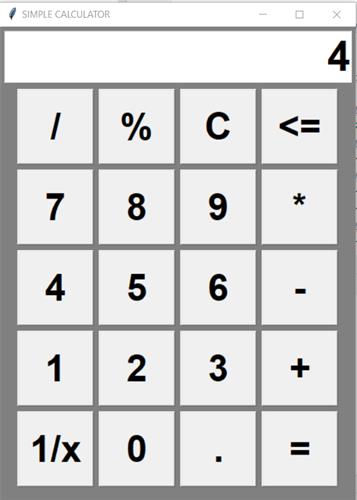
Hope you find this article useful. In the upcoming article, we will learn more about Tkinter and other interesting modules of python.
Till now, Happy Learning😊😊